 ThaiPDF
SIGNATURE
Sign. Place. Done.
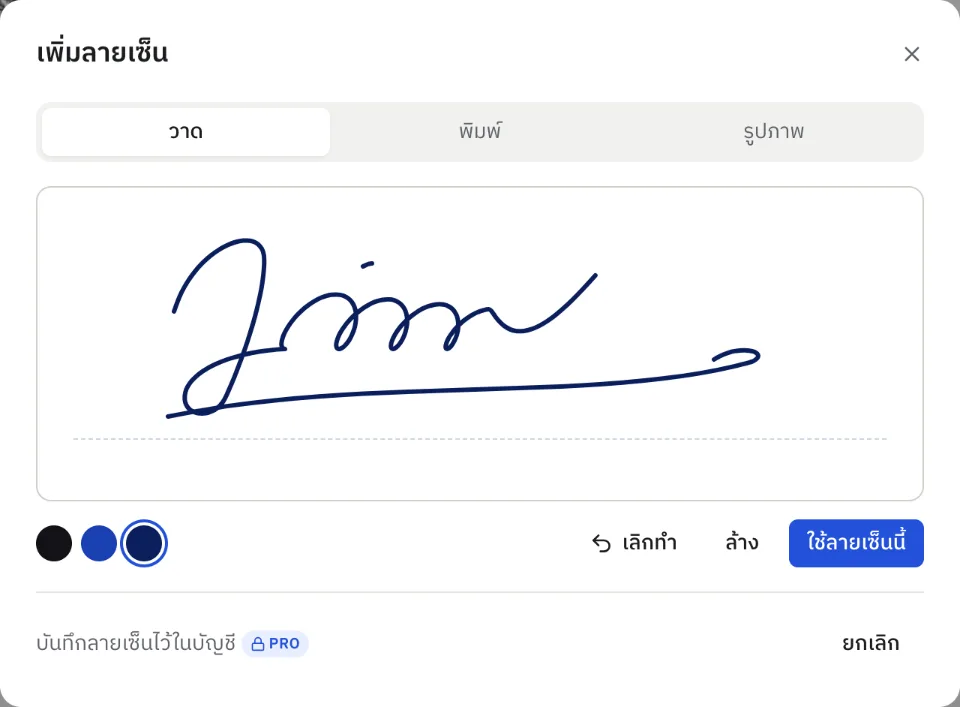
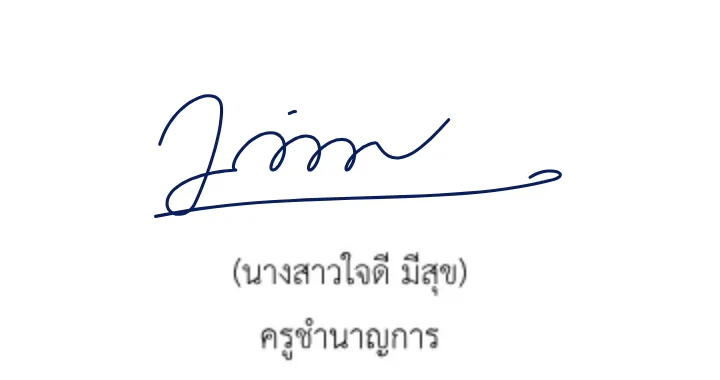
Draw, type or use a picture of your signature, then place it anywhere on the page.
Free and Pro
How it works
- 1
Open the PDF
Open the file to sign in the editor.
- 2
Make your signature
Draw it, type your name or choose a picture; pick the ink.
- 3
Place it and download
Click to place it, move and resize it, then download the PDF.
What it does
- Draw by handWith a mouse, trackpad, finger or Apple Pencil.
- Type it as handwritingType your name and choose a Thai or English handwriting font.
- Use a picturePhotograph or scan your signature on paper; the white background is removed.
- Saved for next timeKeep up to 5 signatures (Pro).
Files and limits
- Black, blue and navy ink
- Move and resize the signature on the page
- Signature pictures as PNG or JPEG
- Up to 5 saved signatures on Pro
Good for
- Signing letters and memos
- Signing contracts and quotations
- Signing forms you send back
Questions
Is this a certified digital signature?
No. ThaiPDF places a picture of your signature on the document, like signing on paper; it isn't a certificate-based digital signature.
Is it free?
Yes, signing is included in Free; downloading the signed file counts as a download. Saving signatures for next time is part of Pro.
Can I sign on my phone?
Yes: draw with your finger on the screen, or with Apple Pencil on an iPad.